Install Sleke Migrate on your old phone
It moves contacts, photos, videos, and files to your new SLEKE phone.
Put this phone on the same Wi-Fi as your new phone. The move needs it, and the download won’t use mobile data.
Download for AndroidThis app is for the Android phone you’re moving from. Open this page there, or scan the code.
No account. Phone to phone over your Wi-Fi, no cloud copy.
Official app from SLEKE, downloaded from its GitHub releases.


Install it, then connect your phones
-
This phone
Open sleke-migrate.apk
Tap it in your notifications or in Downloads. If your browser asks whether to keep the file, keep it.
-
This phone
Allow this one install
Android asks before installing from a browser. Tap Settings, turn on Allow from this source, then go back. You can turn it off again afterwards.
-
This phone
Tap Install, then Open
The installer shows this icon. If Play Protect offers to scan the app, let it scan, then install.When Sleke Migrate opens, tap Start.
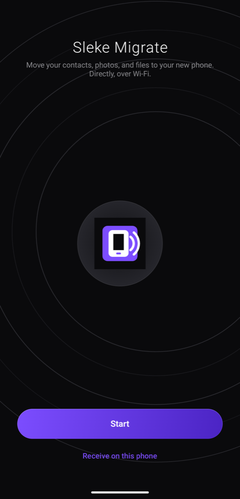
-
New phone
Tap “It’s installed”, then Continue
A code appears under “Scan with Sleke Migrate”.
-
This phone
Scan that code
Tap Scan code and point the camera at the new phone. It’s a different code from the one that brought you here.
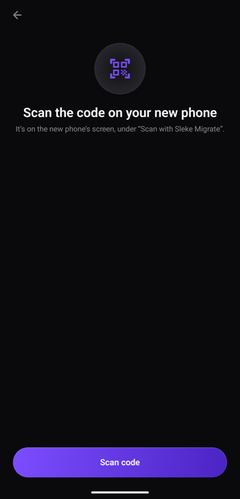
-
This phone
Pick what to send
Contacts, whole albums, or folders. Keep both phones awake and on the same Wi-Fi until it finishes.
If something goes wrong
Android blocked the install, or Play Protect warned
Open sleke-migrate.apk from Downloads again. When Android asks, tap Settings, turn on Allow from this source for your browser, then go back and tap Install.
If Play Protect offers to scan the app, let it scan, then install. To be sure you have the published file, check the file against its checksum.
It says “That’s not a Sleke pairing code”
Scan the pairing screen on the new phone, not the download code. On the new phone, tap “It’s installed”, then Continue, and scan the code under “Scan with Sleke Migrate”.
The new phone keeps waiting
Check the old phone is on the same Wi-Fi as the new one. A guest network, or an old phone that fell back to mobile data, often can’t reach the new phone. Switch networks, then scan again.
If Sleke Migrate asks for local network access, allow it. It needs that to reach the new phone.
My phone is older than Android 9
Sleke Migrate needs Android 9 or newer, so it won’t install on that phone. On the new phone, tap Skip for now to finish setup without it. You can still copy photos and files across with a computer and a USB cable.
Private by design
- The contacts, photos, and files you choose travel directly to the receiving phone over local Wi-Fi.
- The connection is tied to the phone that showed the pairing code.
- No account, no sign-in, and no cloud copy of your transfer.
- It asks for the camera (to scan the code), contacts, photos and files (only what you pick), and local network (to reach the new phone).
- The app does not use your transfer content for advertising or sell it.
- The Android app sends crash reports to Sentry so we can fix bugs. They never include your files.
Read the full privacy policy for diagnostics, retention, and deletion choices.
Verify the file (optional)
Every release ships with a checksum. If the file you downloaded matches it, it is the file we published.
SHA-256 of sleke-migrate.apk, latest release
Fetching the checksum for the latest release…
The checksum is in the sleke-migrate.apk.sha256 file next to each release.
How to check
- macOS or Linux
shasum -a 256 sleke-migrate.apk- Windows Command Prompt
certutil -hashfile sleke-migrate.apk SHA256- Windows PowerShell
Get-FileHash sleke-migrate.apk